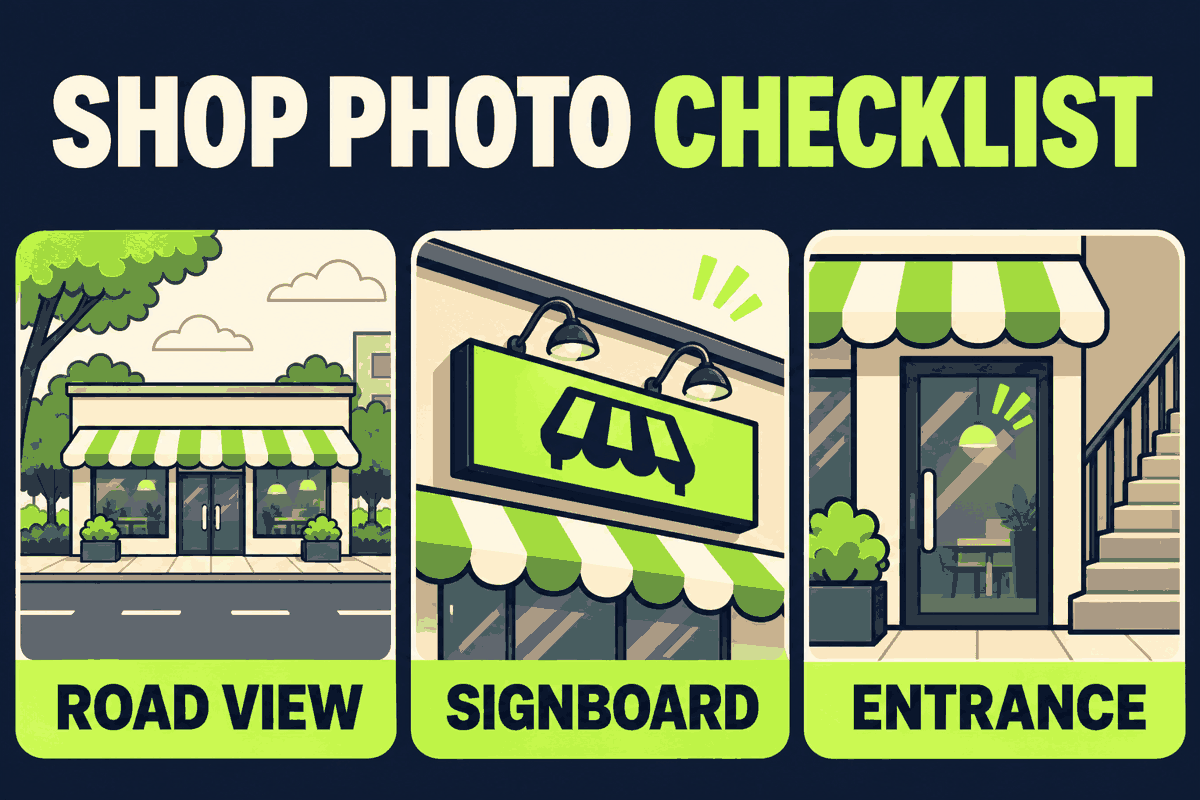
Google Maps pin sahi hai, phir bhi customer first-floor shop dhoondhne ke liye call karta hai? Google Business Profile ki storefront photos mein road, shop ka naam aur actual entrance dikhayein. Phone se teen ya chaar clear shots is kaam ke liye kaafi ho sakte hain.
Photo checklist: road se shop tak
| Shot | Kya dikhayein | Photo ka test |
|---|---|---|
| Road se wide shot | Main approach se shop aur aas-paas ka context | Customer same view dekhkar shop pehchan sake. |
| Signboard aur entrance | Readable shop name aur actual customer door | Side shutter ya staff gate se confusion na ho. |
| Stairs ya lift ka entrance | First-floor shop ke liye ground-floor access point | Customer ko building ke andar jaane ka raasta dikhe. |
| Parking approach, agar useful ho | Actual entry aur clear landmark | Parking access ki position samajh aaye. |
Phone se photos lein aur publish karein
1. Customer ki approach follow karein. Jis road ya lane se zyada customers aate hain, wahan se start karein. Wide shot mein shop ko frame ke beech ke paas rakhein, phir entrance ka alag close shot lein. Agar shop basement ya first floor par hai, staircase ya lift tak ka ek shot bhi lein.
2. Har image ko phone par zoom karke dekhein. Signboard readable ho aur doorway shadow mein na chhup jaye. Customer faces, vehicle plates ya counter par rakhe documents frame se bahar rakhein. Natural light aur real colours use karein.
3. Correct branch ki profile kholein. Business Profile mein Photos section se image add karein. Google ki photo upload guidance ke mutabik JPG ya PNG use karein aur 720 × 720 px recommended hai. Agar photo pending hai, profile mein uska status dekhein. Public listing par photos dikhne ke liye Business Profile verification chahiye.
Doosre phone se customer test karein
Shop ka naam aur locality search karein. Photos dekhkar kisi aise person ko entrance point karne dein jo pehle shop par nahi aaya. Agar woh wrong gate choose kare, ek clearer approach photo add karein aur WhatsApp reply mein actual landmark likhein. Cover photo set karne ke baad bhi Google ka first displayed image alag ho sakta hai, isliye har entrance photo ko apne aap mein clear rakhein.
First-floor shop ke liye WhatsApp message ka sample
“Namaste! [Building name] ke ground floor par [landmark] ke paas stairs hain. First floor par [shop name] ka board dikhega. Ye location link hai: [link].” Brackets mein actual details daal kar message test karein.
Agar marker hi doosri building par hai, Google Maps pin correction guide follow karein. Shop recently move hui hai to address update checklist mein website, WhatsApp aur purane QR links bhi check karein.
Leave a Reply